Monday, September 12, 2016
Use your mobile phone as a EeePC Linux Bluetooth Modem
Use your mobile phone as a EeePC Linux Bluetooth Modem
Firstly, activate your cell phone’s Bluetooth and make it visible (you may need to refer to your cell phone’s manual).
Insert a USB Bluetooth adapter to provide your EeePC with Bluetooth functionality.
Now open a terminal window by holding down (ctrl)(alt)(t) and type:
- sudo hciconfig hci0 up
- sdptool search DUN
 You should see similar output to that shown in the image above. If you don’t, there may be a problem with your phone/adapter - Make sure your phone isn’t paired with your Bluetooth headset etc…
 This output displays your phone’s Bluetooth address (00:15:2A:27:33:58)and the channel that Dial up networking is available on (Channel 1 in this case). Take note of the Bluetooth address and channel.
Now type:
- sudo nano /etc/bluetooth/hcid.conf
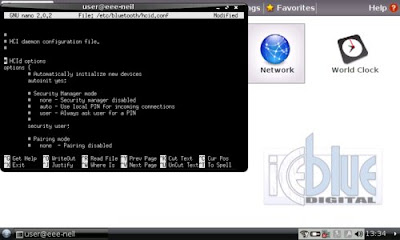 Ensure that the following lines are included and are not commented out (i.e. not preceeded by a ‘#’ character):
options {
autoinit yes;
security auto;
pairing multi;
passkey "222111";
}
device {
name "eeepc";
class 0x000000;
iscan enable;
pscan enable;
lm accept;
lp rswitch,hold,sniff,park;
discovto 0;
}
Most of these settings are okay by default, but we have specifically altered the “security”, “passkey”,”class” and “name” settings and added the “discovto” line.
Press (ctrl)(x) followed by (y) and then (enter) to overwrite the old file with the new changes.
Now type:
- sudo nano /etc/bluetooth/rfcomm.conf
And make sure the following settings are as follows (not preceeded by a ‘#’):
Rfcomm0 {
bind yes;
device 00:15:2A:27:33:58; (BT address from sdptool output)
channel 1; (DUN channel from sdptool output)
comment "GPRS Connection";
}
 Press (ctrl)(x) followed by (y) and then (enter) to overwrite the old file with the new changes. (BlackBerry users refer to my BlackBerry - Linux tethering post)
Type:
- sudo nano /etc/ppp/peers/provider
Find the ‘/dev/modem’ line and edit it to ‘dev/rfcomm0’.
Also edit the ‘connect “/usr/sbin/chat –v –f /etc/chatscripts/pap –T *******”’ line to ‘connect “/usr/sbin/chat –v –f /etc/chatscripts/pap –T *99#”’ where *99# is your phone operators GPRS “dial command”.
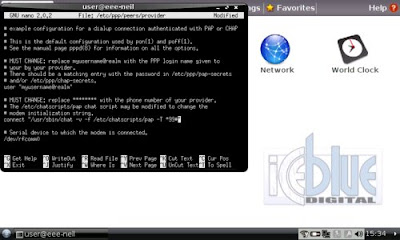 Press (ctrl)(x) followed by (y) and then (enter) to overwrite the old file with the new changes.
 Now type:
- sudo rm -rf /var/lib/bluetooth/*
- sudo /etc/init.d/dbus restart
- sudo /etc/init.d/bluetooth restart
- sudo nano /etc/apt/sources.list
Add the following line to the sources.list file
- deb http://ftp.us.debian.org/debian stable main non-free contrib
Press (ctrl)(x) followed by (y) and then (enter) to overwrite the old file with the new changes.
Now type:
- sudo apt-get update
- sudo apt-get install bluez-gnome
Press (y) to continue…
Once “bluez-gnome” has finished installing type:
- sudo nano /etc/apt/sources.list
Now comment the “deb http://ftp.us.debian.org/debian stable main non-free contrib” line by preceedint it with a ‘#’ (i.e. replace the line with ‘# deb http://ftp.us.debian.org/debian stable main non-free contrib’).
Press (ctrl)(x) followed by (y) and then (enter) to overwrite the old file with the new changes.
Now type:
- bluetooth-applet
This should open a “red cross on a page” icon in your taskbar next to the time.
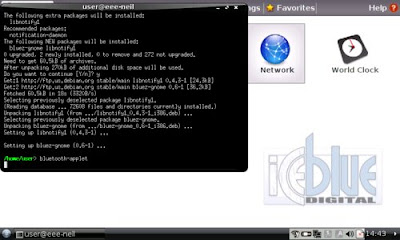 Now open a new terminal (ctrl)(alt)(t) and type:
 - sudo rfcomm connect 0 00:15:2A:27:33:58 1 (phone BT address followed by the channel from sdptool output)
Your phone will now ask you if you would like to pair with eeepc. Select yes and enter the pairing passkey ‘222111’ as entered in hcid.conf above.
At this point the bluetooth-applet icon will begin flashing, click it and enter the passkey ‘222111’.
 Now to establish a GPRS internet connection, open a new terminal (ctrl)(alt)(t) and type:
- sudo pon
Your phone will now connect to the internet via GPRS, giving you ultra mobile access.To kill your GPRS internet connection, open a new terminal (ctrl)(alt)(t) and type:
- sudo poff
To automatically start Bluetooth every time you reboot your EeePC type:
- sudo nano /usr/sbin/services.sh
Just above the last “#” in this file, insert:
- sudo /etc/init.d/dbus start
- sudo /etc/init.d/bluetooth start
Press (ctrl)(x) followed by (y) and then (enter) to overwrite the old file with the new changes.
Now, whenever you want to re-establish the connection, open a new terminal (ctrl)(alt)(t) and type:
- sudo rfcomm connect 0 00:15:2A:27:33:58 1
Then open another terminal (ctrl)(alt)(t) and type:
- sudo pon
“sudo poff” will disconnect your GPRS connection.
Go to link download
